The iPad has become an indispensable tool for both work and leisure, thanks to its portability, functionality, and vast array of applications. However, managing files on an iPad can be a challenge, particularly when it comes to transferring data from an SD card. This article explores effective tips for connecting your iPad to an SD card, ensuring that file management is seamless and efficient.
Understanding iPad File Management
Before diving into the connectivity tips, it is crucial to understand how file management works on iPads. Unlike traditional computers, iPads employ a sandboxed approach to file management, meaning that apps have limited access to each other’s data. With the introduction of the Files app, Apple has significantly improved file management, allowing users to access documents, photos, and other files stored on various cloud services and local storage.
Connecting Your iPad to an SD Card
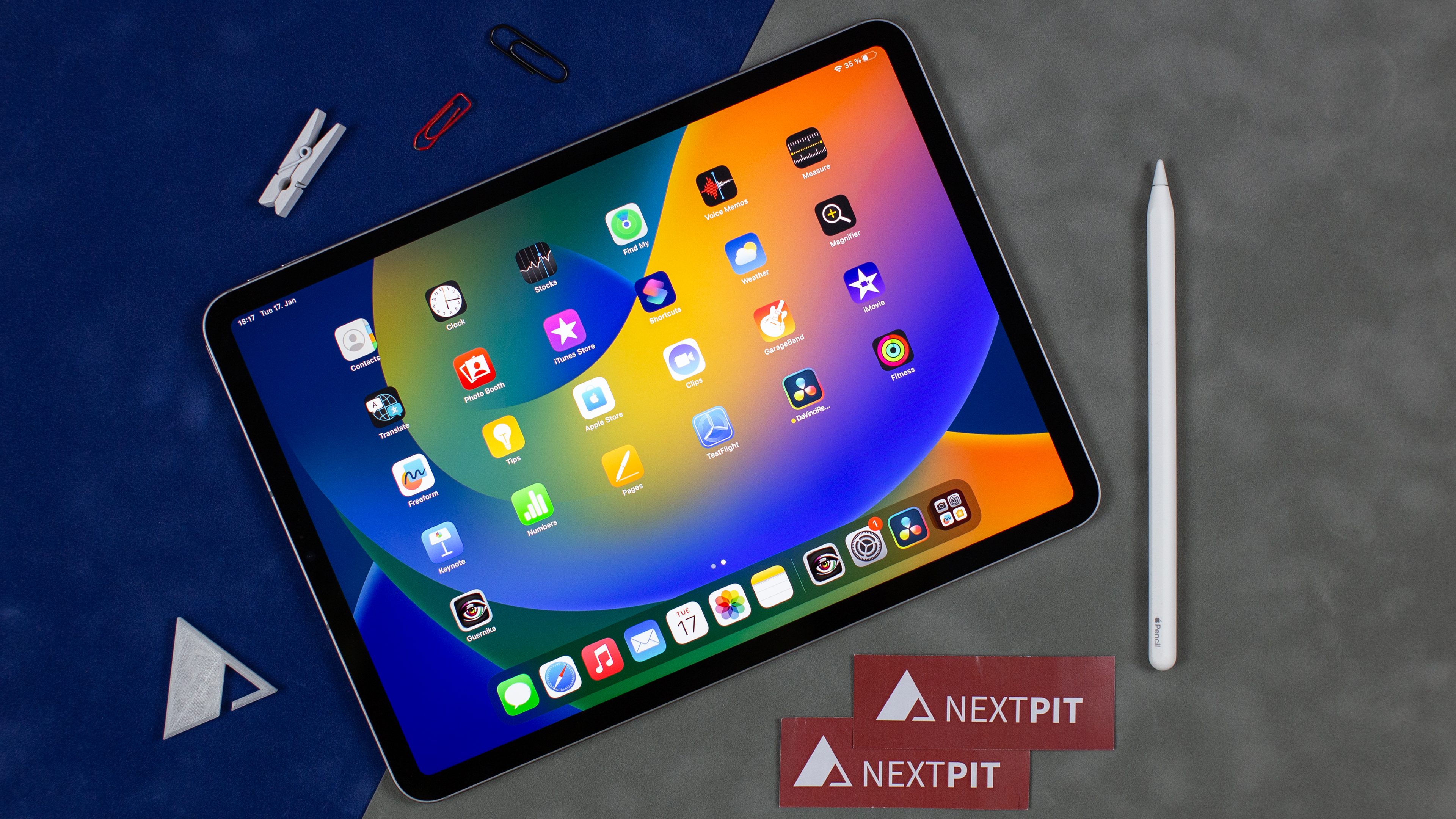
To connect an SD card to your iPad, you will need a card reader compatible with the device. Apple offers two primary options:
- Lightning to SD Card Camera Reader: Ideal for older iPad models, this adapter allows you to connect standard SD cards directly.
- USB-C to SD Card Reader: For iPad Pro models equipped with a USB-C port, this reader supports various SD card formats and provides faster data transfer speeds.
Once you have the appropriate card reader, follow these steps:
- Insert the SD card into the card reader.
- Connect the card reader to your iPad.
- Open the Files app to access the contents of the SD card.
Transferring Files from SD Card to iPad

Transferring files from your SD card to your iPad can be done seamlessly through the Files app. Here’s how:
- Open the Files app on your iPad.
- Select “Browse” at the bottom and choose the SD card from the list of locations.
- Locate the files you wish to transfer.
- Tap “Select” in the upper right corner, choose the files, and select “Copy.”
- Navigate to the desired folder on your iPad and tap “Paste.”
This method allows you to manage a variety of file types, including photos, videos, and documents, making it a versatile option for file transfers.
Best Practices for File Management on iPad
To ensure that file management remains efficient and organized, consider the following best practices:
- Organize Files into Folders: Just like on a computer, organizing files into folders makes it easier to locate specific documents.
- Name Files Descriptively: Use clear and descriptive names for your files to avoid confusion.
- Regularly Backup Files: Utilize cloud storage services like iCloud, Google Drive, or Dropbox to back up important files.
- Use File Management Apps: Consider third-party file management apps like Documents by Readdle or FileBrowser for enhanced functionality.
Common Issues and Troubleshooting Tips
While connecting an SD card to an iPad is generally straightforward, users may encounter issues. Here are some common problems and solutions:
- SD Card Not Recognized: Ensure that the card is properly inserted and compatible with your card reader. If the issue persists, try a different card reader or test the SD card on another device.
- Slow Transfer Speeds: Transfer speeds can be affected by the type of SD card and the adapter. Using high-speed SD cards (Class 10 or UHS-I) can improve performance.
- File Format Issues: Ensure that the files on the SD card are in a format supported by iOS. Common formats like JPEG, PNG, MP4, and PDF are generally compatible.
Enhancing Productivity with Third-Party Apps
To maximize the potential of your iPad as a file management tool, consider integrating third-party apps. Many of these apps offer additional features that enhance productivity.
- Documents by Readdle: This app combines a file manager, media player, and document viewer, allowing users to organize and access files efficiently.
- FileBrowser: A powerful app that lets you connect to your local network and cloud services, making it easy to transfer files across devices.
- Adobe Scan: For users who frequently work with documents, Adobe Scan allows you to scan physical documents and save them as PDFs directly to your iPad.
Case Studies: Real-World Applications
Many professionals and creatives use iPads for various tasks, from photography to graphic design. Here are a couple of case studies illustrating the benefits of SD card connectivity:
Case Study 1: Photographer
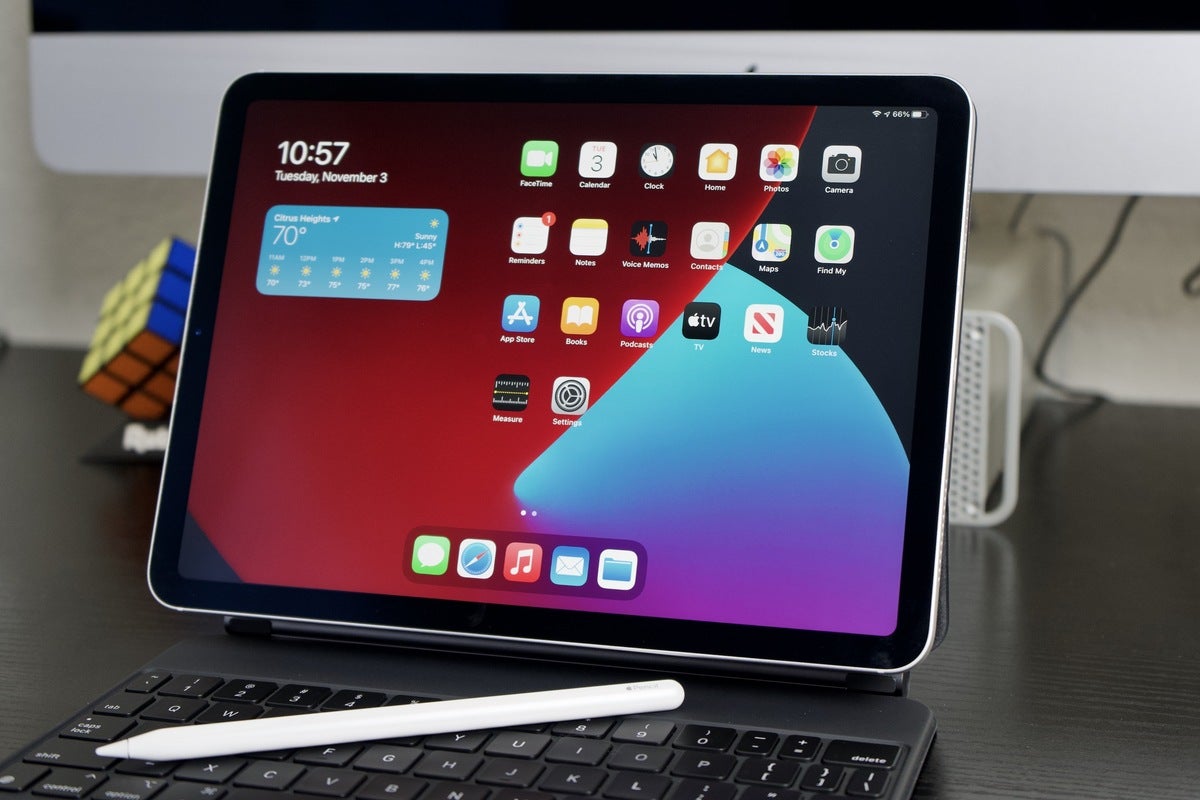
A freelance photographer uses an iPad Pro with a USB-C to SD Card Reader to manage his photos on location. After a shoot, he quickly transfers images from his SD card to the iPad using the Files app. The ability to edit and share photos on the go has increased his productivity, allowing him to deliver proofs to clients within hours.
Case Study 2: Graphic Designer
A graphic designer employs the iPad for creating and presenting design mockups. By connecting an SD card with design assets, she can easily access high-resolution images and graphics stored on the card. Using apps like Procreate and Adobe Fresco, she can create stunning visuals and share them directly with clients, streamlining the design process.
Connecting an iPad to an SD card may seem daunting, but with the right tools and techniques, it can significantly enhance your file management experience. By understanding the connectivity options, practicing effective file management strategies, and utilizing third-party apps, users can ensure seamless transfers and organized storage. Whether you are a photographer, a designer, or simply looking for a more efficient way to manage files, these tips can help you make the most of your iPad and SD card connectivity.
In summary, the combination of iPads and SD cards can lead to greater productivity and an organized file management system. By following the outlined tips and staying informed about potential issues, users can navigate the world of digital file management with ease.