In today’s digital age, the ability to connect various devices and expand functionality is crucial. Micro USB On-The-Go (OTG) cables have made it possible for users to connect USB peripherals directly to their smartphones and tablets, transforming the way we interact with our devices. However, despite their convenience, users often encounter issues when using Micro USB OTG cables. This article aims to address common problems, provide troubleshooting tips, and offer insights into achieving a seamless user experience.
Understanding Micro USB OTG Technology
Before diving into troubleshooting, it’s essential to understand what Micro USB OTG cables are and how they work. OTG technology allows a mobile device to act as a host, enabling it to communicate with USB devices such as keyboards, mice, flash drives, and game controllers. The Micro USB OTG cable has a specific wiring configuration that enables this host capability.
Common Issues with Micro USB OTG Cables

While Micro USB OTG cables are extremely useful, users may face several common issues that can impede functionality. Here are some of the most frequently encountered problems:
- Device Not Recognizing the USB Peripheral: One of the most common issues is that the smartphone or tablet does not recognize the connected USB device.
- Power Supply Problems: Some USB devices require more power than what the smartphone can provide, leading to functionality issues.
- Data Transfer Failures: Users may experience failed data transfers when trying to move files between devices.
- Incompatibility Issues: Not all devices support OTG, leading to potential compatibility issues.
- Physical Damage: OTG cables can be susceptible to wear and tear, causing connectivity problems.
Troubleshooting Steps for Common Issues
If you encounter any of the aforementioned issues while using a Micro USB OTG cable, here are some troubleshooting steps to consider:
1. Check Device Compatibility
Before attempting any fixes, ensure that your smartphone or tablet supports OTG functionality. Not all devices come with this capability. Here’s how to check:
- Consult the device’s specifications on the manufacturer’s website.
- Search for “OTG support” in the device’s settings or user manual.
- Use third-party apps like “USB OTG Checker” to verify compatibility.
2. Inspect the OTG Cable for Damage
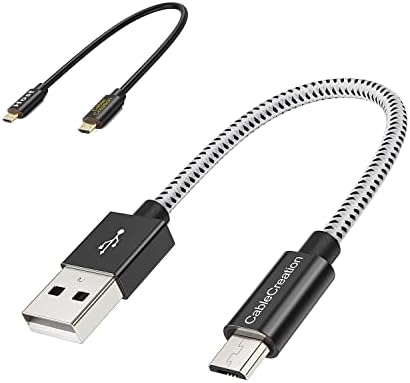
Physical damage to the OTG cable can lead to connectivity issues. To inspect your cable:
- Look for frayed wires or broken connectors.
- Check for dirt or debris in the USB ports that could interfere with the connection.
- If available, test the cable with another device to rule out cable malfunction.
3. Restart Your Device

A simple restart can often resolve temporary glitches. When troubleshooting connectivity issues, follow these steps:
- Unplug the OTG cable and USB device.
- Restart your smartphone or tablet.
- Reconnect the OTG cable and USB device after the device has fully rebooted.
4. Use a Powered USB Hub
For devices that require more power, using a powered USB hub can solve power-related issues. Here’s how:
- Connect the powered USB hub to the OTG cable.
- Plug in your USB device to the hub.
- Ensure the hub is plugged into a power source.
5. Update Device Software
Software updates can include enhancements for OTG support. To check for updates:
- Go to your device’s settings.
- Navigate to “About Phone” or “System Updates.”
- Download and install any available updates.
6. Test with Different USB Devices

If a specific USB device is not recognized, test it with another smartphone or tablet to rule out device issues. Additionally, try using different USB devices with your mobile device to see if the issue persists.
7. Clear Cache and Data of USB-Related Apps

Sometimes, the cache and data of USB-related applications can cause issues. To clear this data:
- Go to “Settings” on your device.
- Select “Apps” or “Application Manager.”
- Find and select any relevant USB apps (e.g., file manager apps).
- Choose “Storage” and clear cache and data.
Case Studies and Examples
Understanding real-world scenarios can help illustrate the troubleshooting process. Here are a couple of examples:
Case Study 1: Keyboard Not Recognized
A user experienced issues when trying to connect a USB keyboard to their Android device using a Micro USB OTG cable. After confirming OTG compatibility, they noticed that the keyboard was not getting enough power. By connecting a powered USB hub, they successfully used the keyboard with their device.
Case Study 2: Flash Drive Data Transfer Failures
Another user faced data transfer failures when linking a flash drive to their phone. After troubleshooting, they found that their device’s file manager app was corrupted. Clearing the app’s cache resolved the issue, allowing for successful data transfers.
Statistics on Micro USB OTG Usage

According to recent surveys, approximately 70% of smartphone users have utilized OTG technology at least once. Furthermore, among those users, 65% reported experiencing issues related to device recognition and data transfer. These statistics highlight the importance of effective troubleshooting methods for a significant portion of the user base.
Micro USB OTG cables are invaluable tools that enhance the functionality of mobile devices by allowing direct connections to USB peripherals. However, common issues such as device recognition failures, power supply problems, and compatibility issues can arise. By following the troubleshooting steps outlined in this article—such as checking device compatibility, inspecting cables, restarting devices, and using powered USB hubs—users can address these problems efficiently.
As technology continues to evolve, staying informed about potential issues and solutions will enable users to make the most of their Micro USB OTG cables, ensuring a seamless experience when connecting various devices. Ultimately, understanding and troubleshooting these common issues will empower users to expand their device capabilities and enhance their digital interactions.